When internet speeds slow down at home or in the office, many people first assume it is a problem with the 'internet line' or the 'ISP.' However, it is surprisingly often due to the placement or configuration of the router we use daily. Today, we will address common misconceptions about routers and cover practical ways to optimize their actual performance.
Common Misconceptions and Truths About Routers
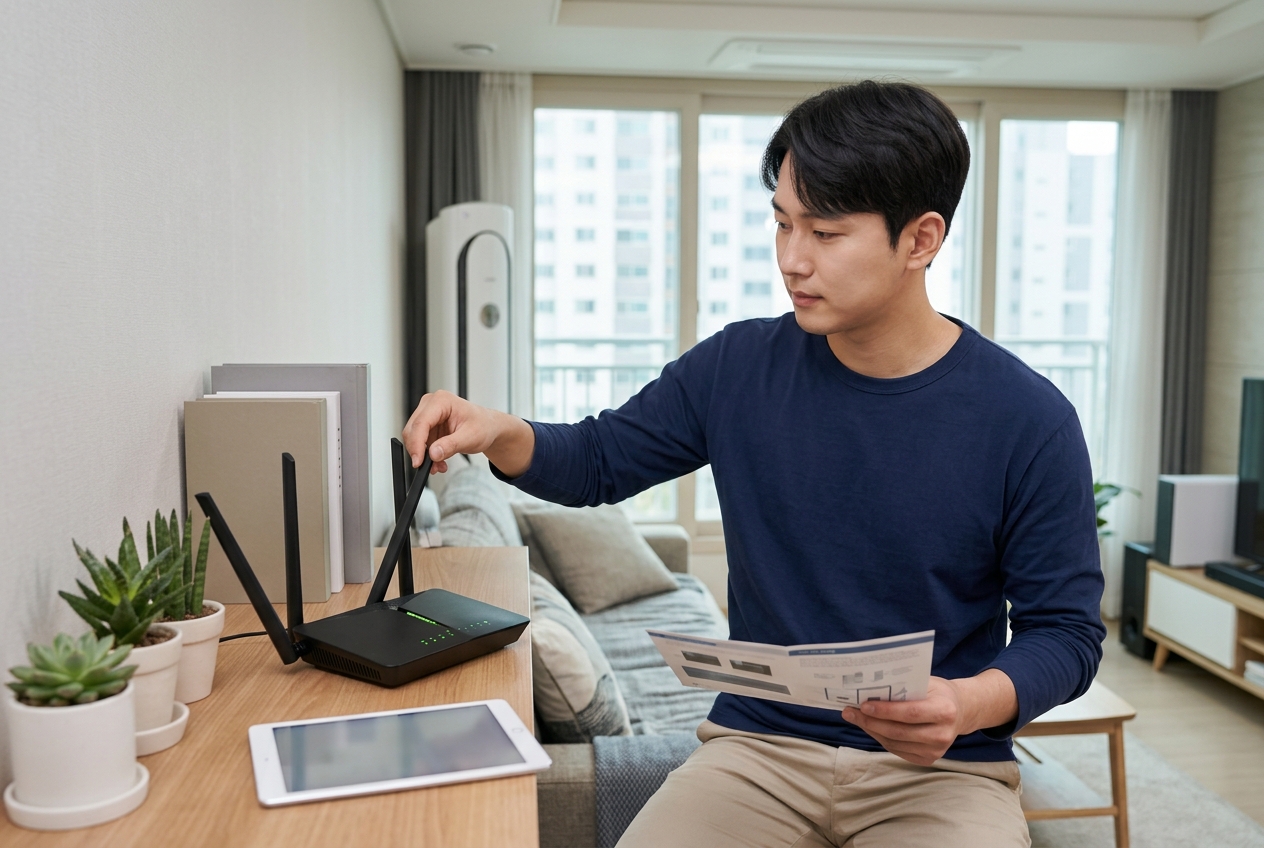
One of the most frequent questions is, 'Does buying an expensive router automatically make my internet faster?' To be clear, a router is not a device that generates internet speed; it acts as a gateway that distributes incoming data. In other words, if the maximum speed you receive from your ISP is 100Mbps, you will not get speeds higher than 100Mbps regardless of how high-end your router is. However, high-end routers do have a clear effect on improving overall network stability when there are many devices connected. Expensive routers are specialized in handling bottlenecks and reducing latency that occur when multiple devices are connected simultaneously, rather than simply increasing raw speed.
Another misconception is the belief that 'the more antennas a router has, the better the performance.' While the number of antennas relates to bandwidth processing or reception range, recent advancements in internal antenna technology mean many products with fewer visible antennas perform much better. The performance of the chipset, the supported Wi-Fi standard (Wi-Fi 5, 6, 6E, etc.), and firmware optimization are far more important than the number of antennas. Having external antennas does not necessarily mean a wider coverage area, and if the antennas are angled incorrectly, it can actually create signal dead zones. Therefore, rather than obsessing over the number of antennas, product selection should prioritize your actual usage environment (square footage, wall materials, number of connected devices).
Key Factors Determining Router Performance
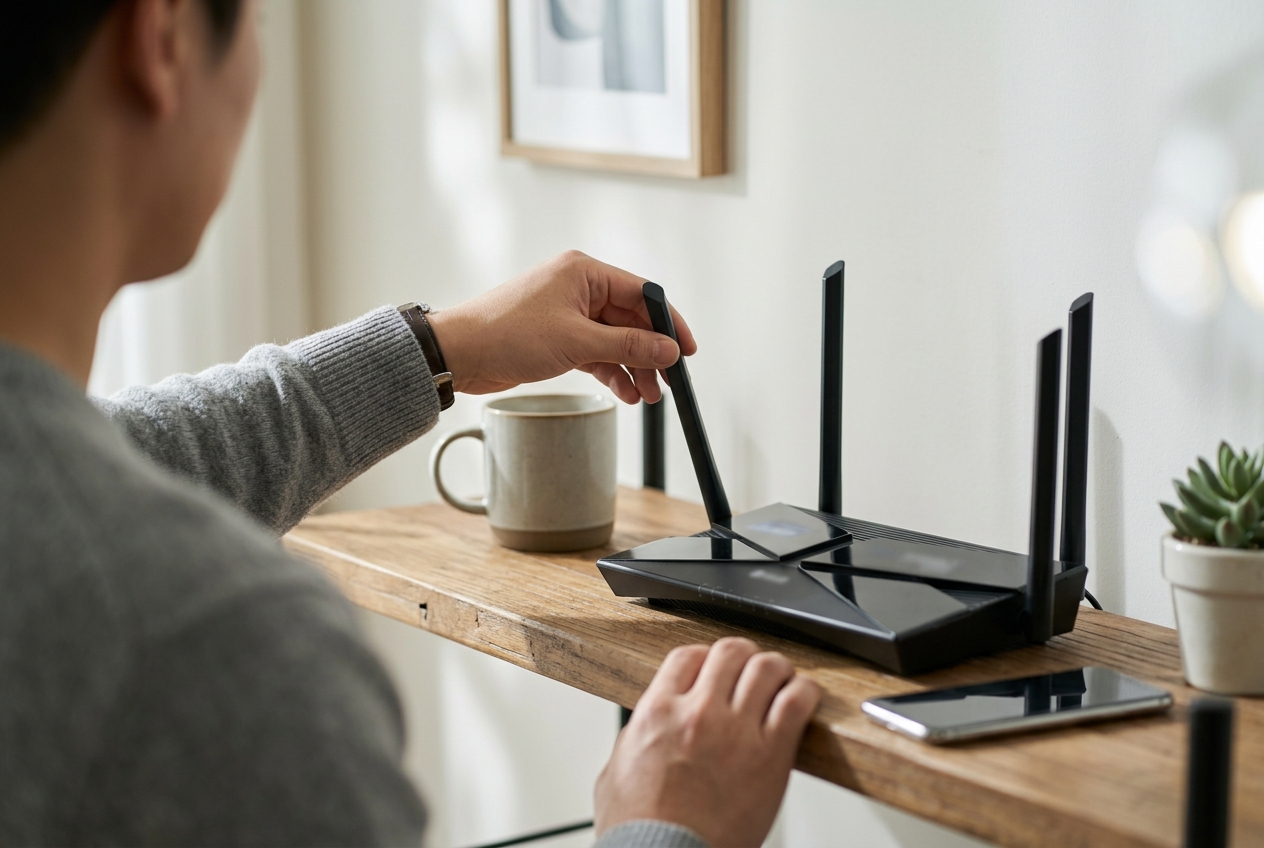
We have summarized the factors to consider when choosing or managing a router in the table below. Please check these criteria rather than just looking at the price.
| Category | Impact on Performance | Checkpoints |
|---|---|---|
| Wi-Fi Standard | Data transfer speed and efficiency | Support for Wi-Fi 6 (802.11ax) |
| CPU and RAM | Simultaneous connection processing | High specs essential for many devices |
| Frequency Band | Interference avoidance and speed | 2.4GHz/5GHz dual-band or higher |
| Antenna Design | Signal coverage range | Support for Beamforming technology |
As shown in the table above, the key is not just the number of antennas, but how the router utilizes different frequencies in your actual environment. In particular, the 5GHz band is fast but has poor wall penetration, so a strategic placement based on your home's layout is necessary. The 2.4GHz band is relatively slower but has better wall penetration, making it advantageous for transmitting signals over long distances. Recent routers support a 'Smart Connect' feature that automatically switches between these two bands, so it is recommended to utilize this. Additionally, checking if the device supports MU-MIMO (Multi-User, Multiple-Input, Multiple-Output) technology can help minimize speed drops when multiple devices are connected at once.
Practical Tips for Efficient Placement
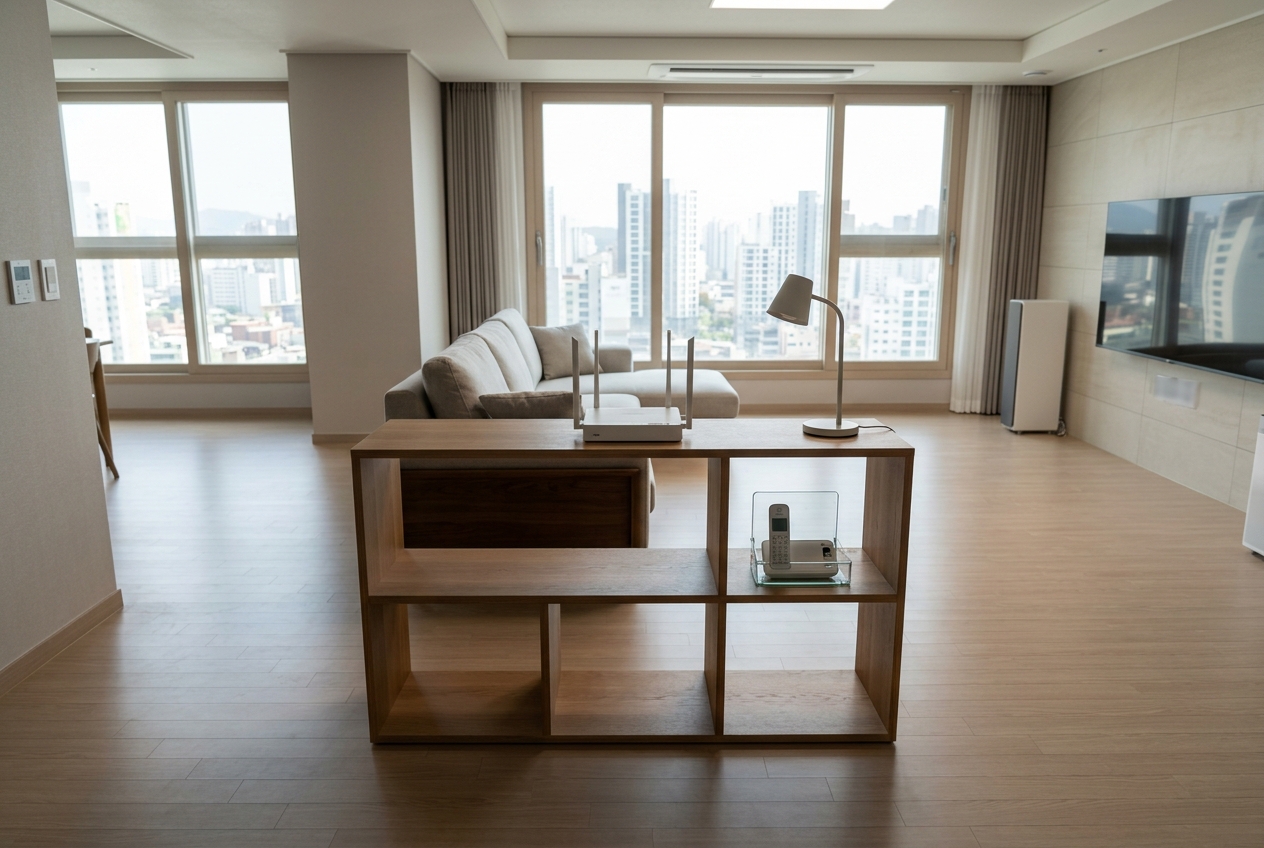
Placing a router in a corner on the floor or hiding it inside a cabinet is detrimental to signal transmission. Because Wi-Fi signals are radio waves, they attenuate when they encounter obstacles. It is best to place it in the center of the house and in a high location rather than on the floor. Putting it inside a metal cabinet is the most effective way to block the signal and should be avoided. If your walls are concrete, more than 70-80% of the signal can be blocked, so placing it in a hallway or an open space in the living room is ideal.
Checkpoints for placement are as follows: First, avoid areas near home appliances that use the 2.4GHz band, such as microwaves or cordless phones. These cause frequency interference with Wi-Fi signals and are a major cause of speed drops. Second, there should be no metallic objects or mirrors near the router. Metal reflects signals, and mirrors distort the signal path. Third, place it in the center of the house if possible so that the signal spreads evenly to all rooms. If your home is large and has dead zones, it is more cost-effective to consider a Mesh Wi-Fi system rather than just buying a more expensive router. This technology links multiple routers into a single network, allowing you to catch a signal seamlessly anywhere in the house. You can easily understand the precautions for initial setup by referring to From Choosing to Installing an IPTIME Router: A Complete Guide for Beginners. When installing, the key is to place nodes close enough to each other to minimize signal loss.
The Importance of Firmware Updates and Security Settings
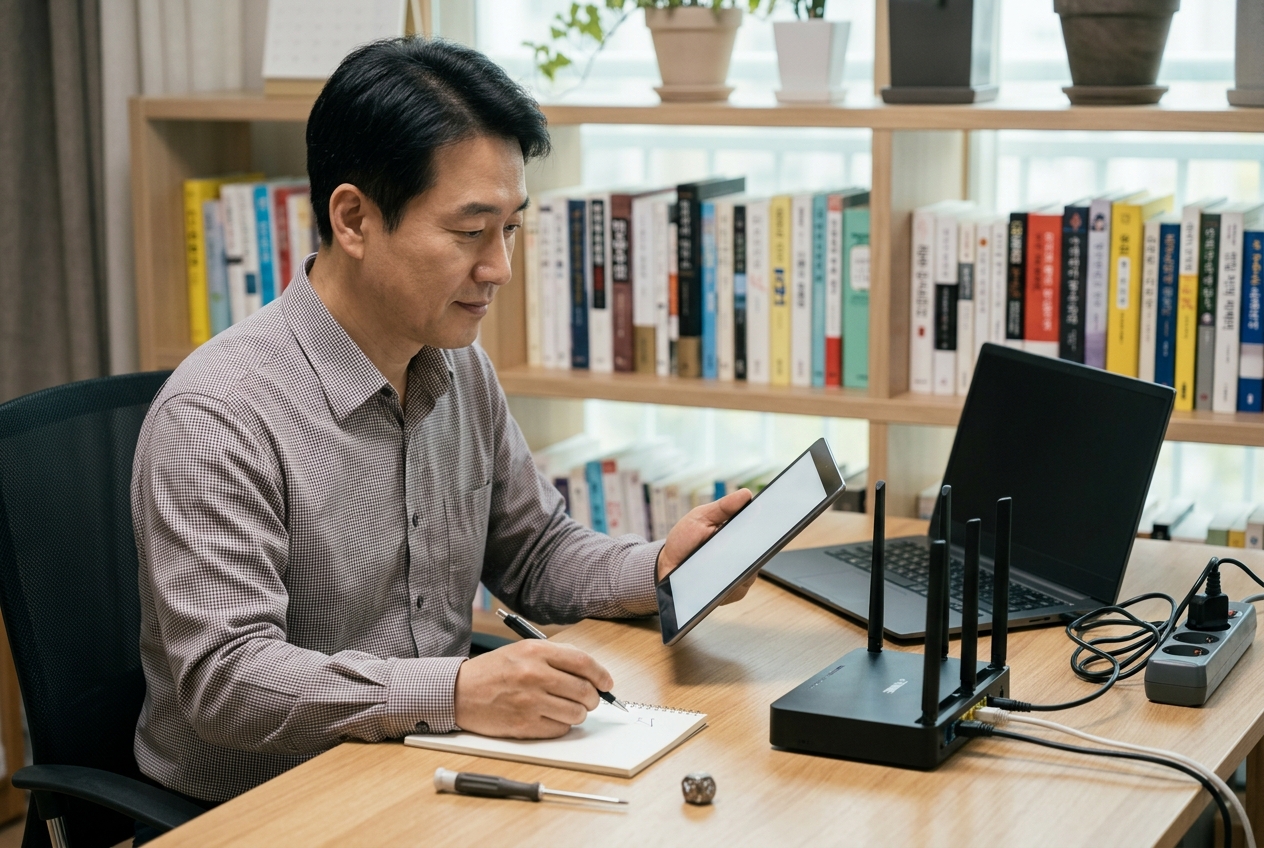
Security is just as important as performance. Many users leave the default password or fail to configure security settings, effectively sharing their network with the outside world. This not only leads to potential personal information leaks but also causes unknown devices to occupy bandwidth, slowing down your internet speed. Simply accessing the admin page periodically to keep the firmware up to date significantly improves router stability. This is because firmware includes security vulnerability patches and performance improvement code discovered by the manufacturer. For security, use WPA3 or at least WPA2-AES, and set a password that combines letters, numbers, and special characters.
Also, as guided in From Installing to Optimizing an IPTIME Router: A Checklist to Boost Performance by 100%, changing channels to minimize interference from neighboring routers is essential. Especially in areas with high router density like apartments, simply changing the channel setting can noticeably improve Wi-Fi quality. Using the 'Wireless Channel Analysis' feature in the admin page allows you to automatically receive recommendations for the least congested channel in your area. Additionally, enabling the Guest Network feature to provide a separate network for visitors can keep your main network more secure. Since the guest network operates separately from your personal devices, it has the advantage of blocking access to internal resources even if an outsider connects.
Finally, heat management of the router also significantly affects performance. As a device that runs for long periods, it should be placed in a well-ventilated area; enclosed spaces that trap heat can shorten the device's lifespan and cause intermittent disconnections. Periodic reboots can resolve memory leak issues and restore comfortable speeds, so it is a good habit to turn the power off and on about once a week. These small management habits can bring about much greater performance improvements than buying new, expensive equipment. If you feel a performance drop during long-term use, setting up 'Auto-Reboot Scheduling' in the router management page to restart automatically at a specific time every week is also a very effective management method.
A router is not a consumable item that you install once and forget; it is a network device that requires continuous management. By correcting misconceptions and combining proper placement with periodic setting checks, you can build a satisfactory internet environment even with your current equipment. The beginning of good network management is the habit of checking your current environment before resorting to unconditional replacement. Managing a router is like changing the engine oil in a car. If you check its status periodically and maintain optimized settings, you can extend the life of the equipment and always experience the best internet speed. Access your admin page right now to update to the latest firmware and set a channel optimized for your environment. Small changes will make your digital life much more comfortable.
Frequently Asked Questions
Does replacing the router automatically make my internet faster?
No. Internet speed is most heavily influenced by the line speed provided by your ISP. However, if you are using an old router, replacing it with one that supports the latest standards can improve wireless signal stability and processing capacity.
What is the solution when the Wi-Fi signal is weak?
Moving the router to a high, central location in the house and clearing away metal obstacles is the priority. If that does not solve the issue, consider expanding with Mesh Wi-Fi.
Why is router security important?
If there is no password or it is weak, outsiders can connect without authorization to steal personal information or use your bandwidth without your knowledge, which can slow down your internet speed.
What is Mesh Wi-Fi?
It is a technology that connects multiple routers into a single network, allowing you to use the internet seamlessly anywhere in the house under the same Wi-Fi ID.